ArchiCAD to Revit IFC Exchange

Introduction

As IFC interoperability continues to improve, BIM strategies are focusing on more powerful and consistent model exchange workflows. To ensure a smooth collaboration process, it’s essential to establish key file setup parameters from early on in the project.

In practice, ArchiCAD users often collaborate with teams working in Autodesk Revit, and the results can vary widely depending on how models are prepared and exported.

Some of the most common pain points are outlined below:

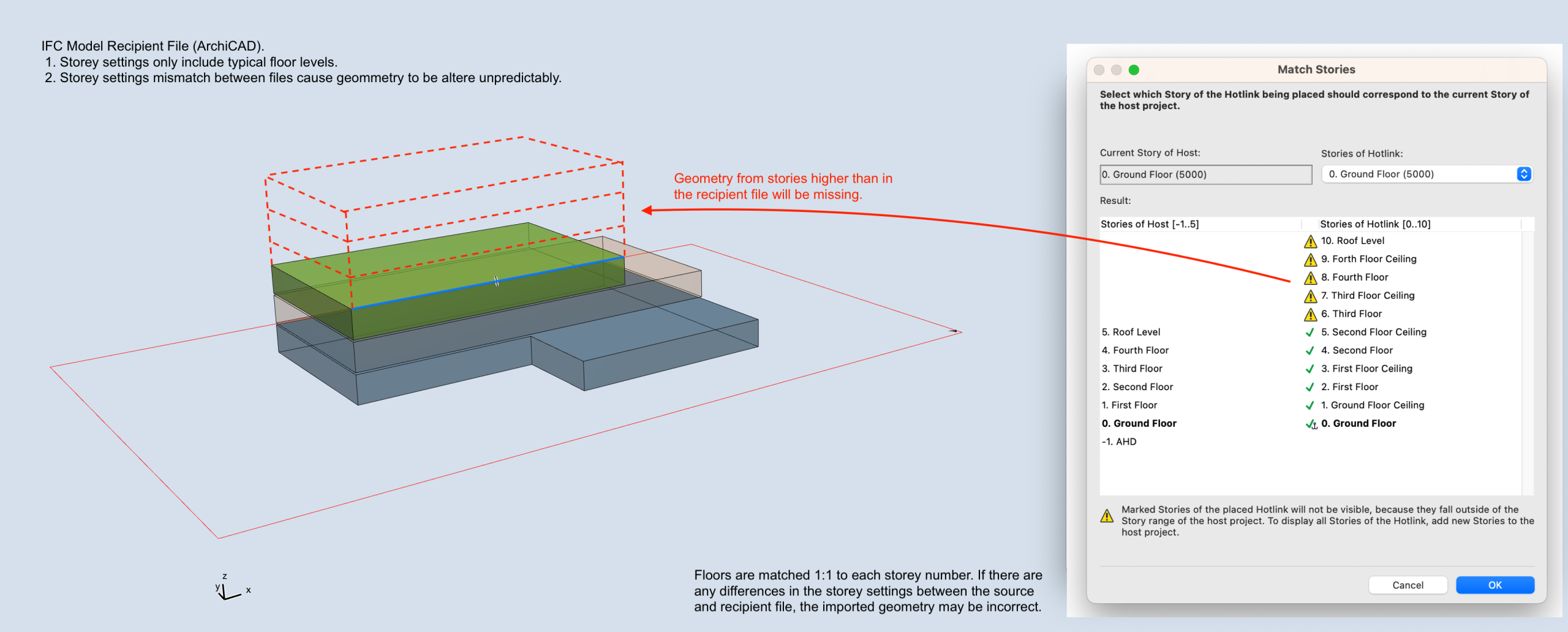
Different CAD platforms each manage and interpret storey levels in their own way. In ArchiCAD, it’s generally best practice to keep storey definitions straightforward, aligning them only with the primary building floors.

Revit, on the other hand, often incorporates additional reference levels, such as façade datums or ceiling benchmarks, which serve design and coordination purposes beyond actual storey definitions. When exchanged via IFC, these extra reference levels can be interpreted by ArchiCAD as true building storeys, sometimes causing elements to resize or reposition unexpectedly.
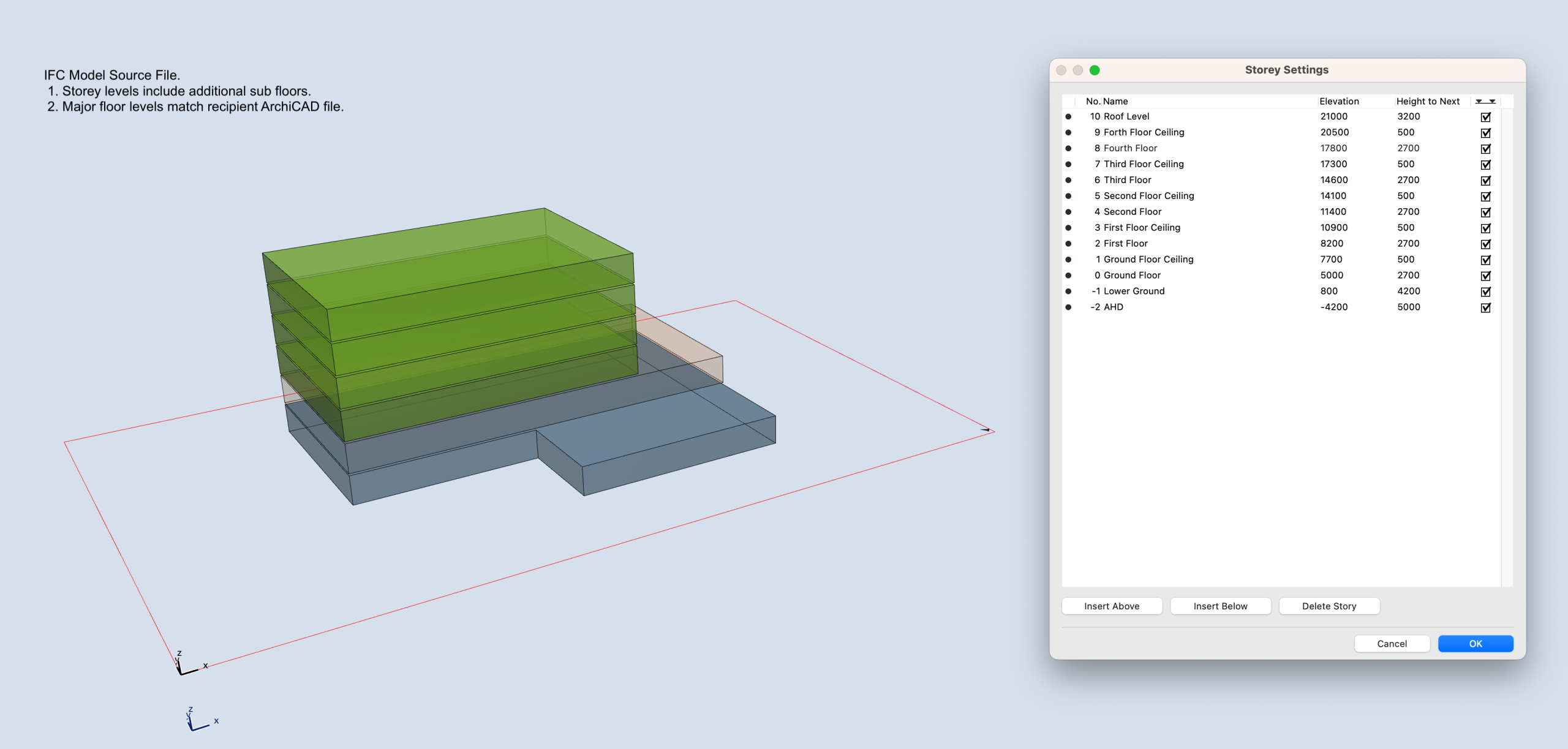
When importing IFC files into ArchiCAD, a commonly recommended approach is to reposition the model using survey points tied to world coordinates. This method works well and is included in our IFC Interoperability Guide here.

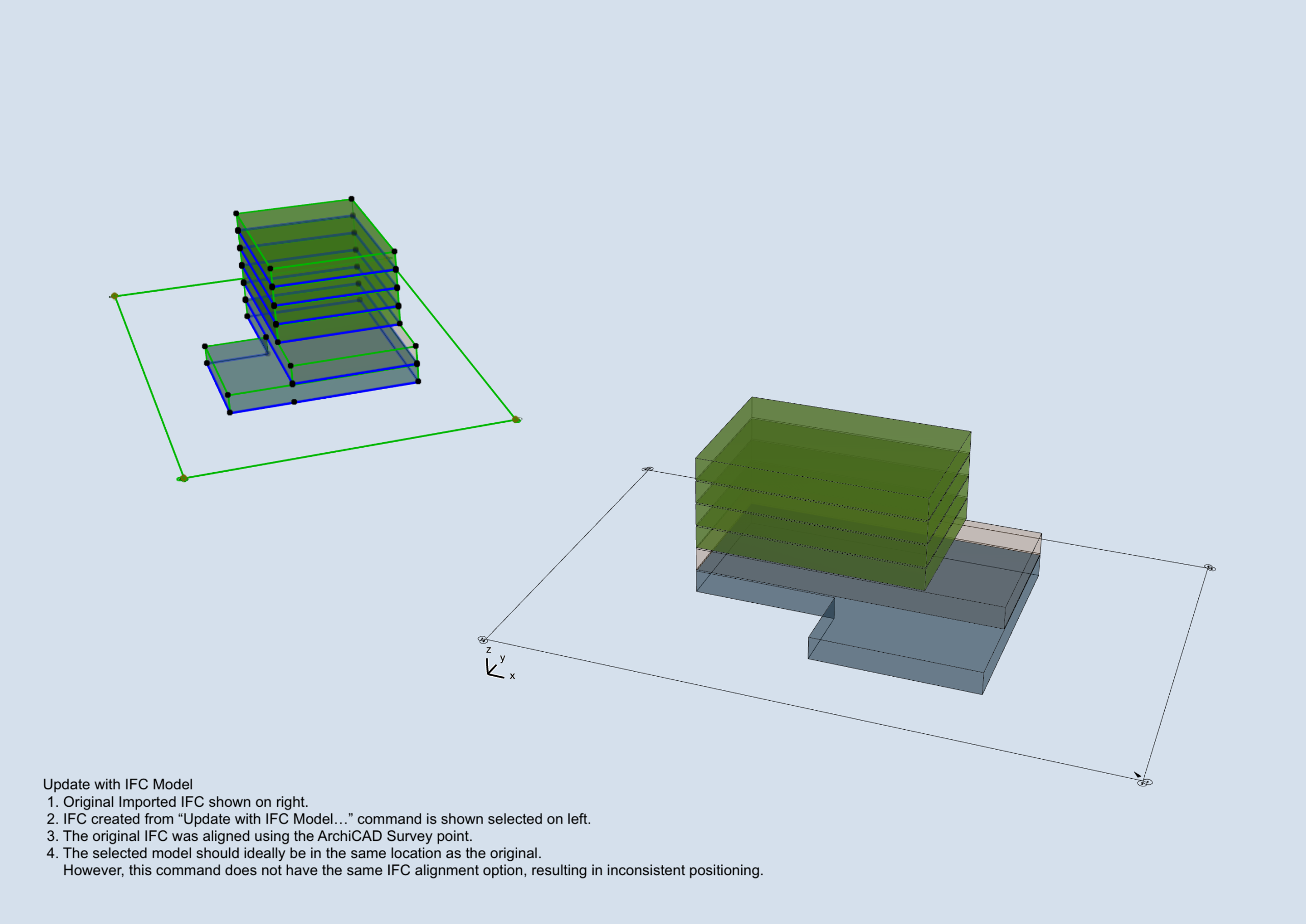
However, while effective for a single import, it introduces complications when ongoing coordination and repeated model updates are required. ArchiCAD’s “Update with IFC Model…” command is a powerful tool for both updating a referenced IFC and identifying revisions—information that IFC files typically do not communicate clearly.

The challenge is that this command does not account for survey-point-based repositioning. As a result, ArchiCAD may misplace the updated model, preventing accurate comparison with previous versions.
The way CAD platforms interpret and translate data from IFC files is often not the most transparent process. When a model is exchanged, the receiving application may display the data in unexpected ways, leading to various frustrations. Without access to additional software (often tied to a significant investment) it can be challenging to understand the full scope of how the model is being processed. In some cases, elements may be missing entirely, while others may appear with geometry that is generated inefficiently or inaccurately.

Below is an example of an IFC produced from ArchiCAD which had strange boundary boxes for services objects and openings. This was related to a specific setting in the IFC translator and not something that is obvious during a standard workflow.
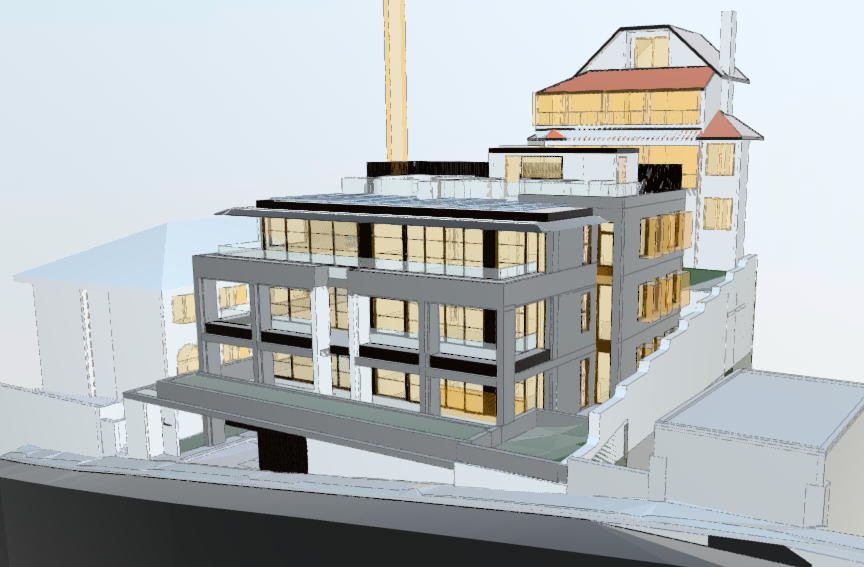
Although it is possible to address the above issues with precise control over the IFC Translator settings, the required solution may differ between various parties. 

This guide outlines a straightforward, shared workflow designed to simplify the often complex and confusing process of accurately positioning IFC models for coordination.

The overall strategy is to establish common base points, orientation and storey levels for both ArchiCAD and Revit. This will allow IFC file outputs to be exchanged between programs whilst avoiding more complex methods such as using survey points or georeferencing.

The success of this method will be dependent on the agreement of parties to structure their project files consistently.

Prerequisite Settings

For the workflow described in this guide, several key model settings need to be agreed upon prior to start of works, and these should be clearly communicated to all project participants.

  1. Model Orientation
    • The project will be positioned so that major building elements/grids/site boundaries are orthogonal to the screen. 
    • The north point will then be set accordingly with the above rotation considered.
  2. Project Vertical Position
    • The model will be constructed with the correct levels according to sea level (AHD). 
    • This is normally designated to a specific AHD storey where elevation = 0.
  3. Storey Levels
    • Building storey levels need to be consistent between all parties.
    • Levels should be established and circulated by the Architect to all parties prior to start of works.

ArchiCAD to Revit IFC Setup

Project Model Position

  • Position model to the project origin as a the base point.
  • Align the building’s main structures and grids with the screen’s orthogonal axis. View rotation should be set to 0°
  • Set Project North according to the survey, taking into account the rotation from the previous step.
    • In ArchiCAD: Project Preferences > Set Project North.
    • To verify, toggle the survey point: Project Preferences > Survey Point > Show Survey Point.
Storey Level Coordination

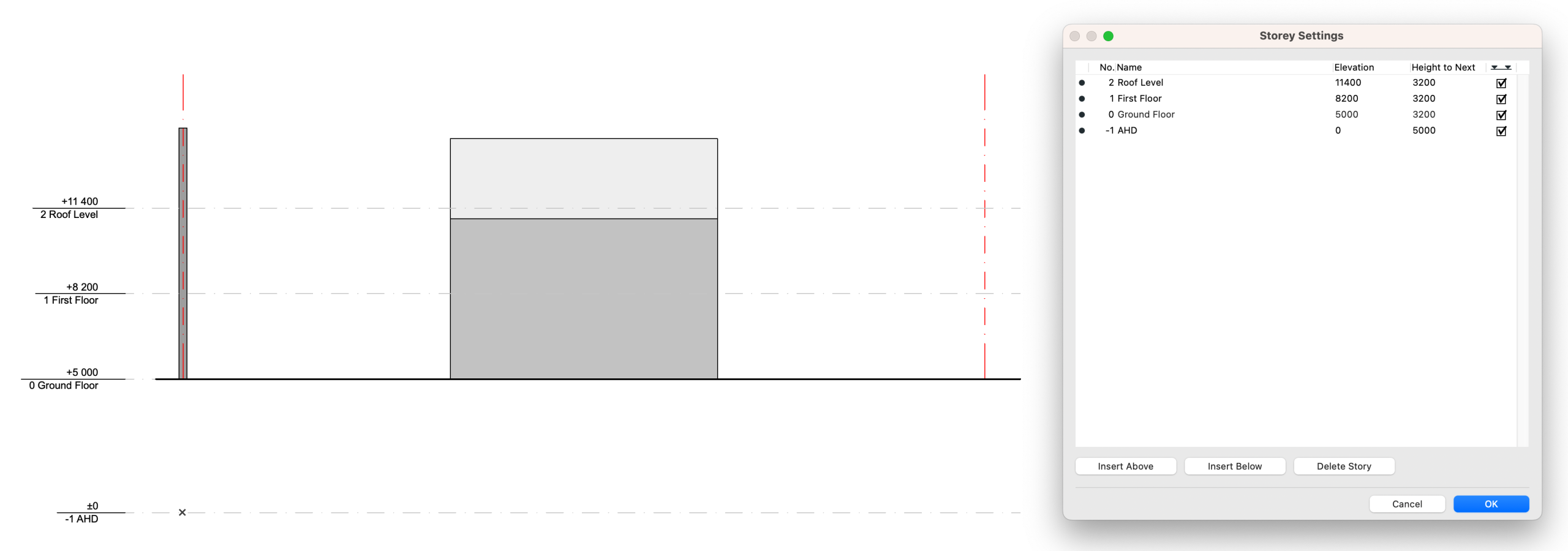
  • Storey settings, including names and elevations, should be consistent across all parties.
  • The project lead / architect is to establish a master table of storey levels to ensure correct vertical alignment.
  • Avoid modelling secondary reference levels as storeys (e.g. façade datum lines, ceiling, or sill levels).
  • If there are any amendments to building levels during the duration of the project, updated values will need to be communicated to all parties.
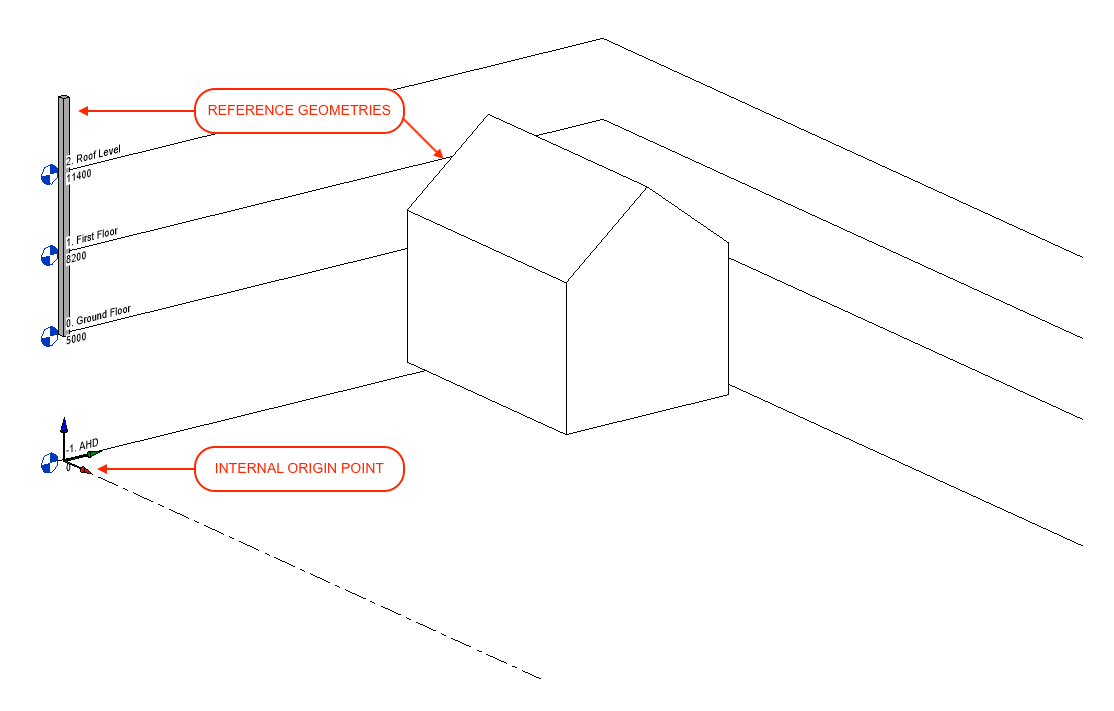
  • Note: Including a native multi-storey element in the IFC file will allow Revit to automatically generate relevant storey levels.
    A column linked to the full height of the project is a useful way to avoid discrepancies between programs.
Coordination with Revit

  • ArchiCAD’s project origin will be translated as an IFC project base point.
  • Revit will then use this point to position the model against its own Internal Origin.
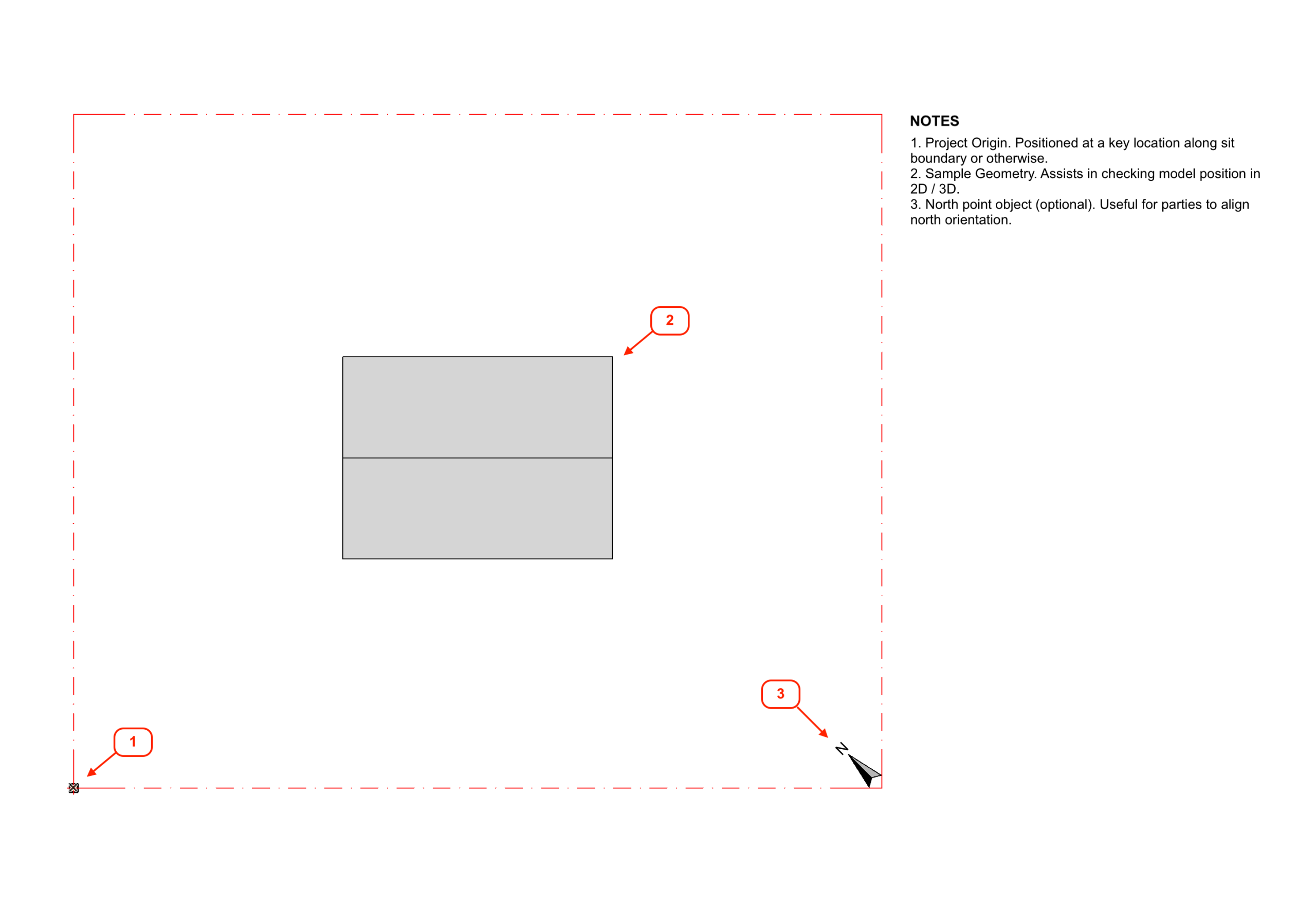
  • This information should be circulated at the beginning of the project as a rudimentary IFC file. Include only essential details: Site Boundaries, Project Origin, and North Orientation.

ArchiCAD Export Workflow

  1. Draw coordination geometry:
    • Site boundary as grid elements
    • Multi-storey column linked to top storey
    • 3D North marker
  2. Orient model to be orthogonal to screen
  3. Filter and setup saved 3D View
  4. Copy view into Publisher and set as IFC format.
  5. Set translator to “Smart IFC to Revit Export”.
    • The translator will determine the model’s geometry, position and IFC properties/classifications.
    • A copy of the translator can be extracted from our sample .pln file. Download here.
    • A full breakdown of the settings can be viewed below.
  6. Publish and verify IFC contents by opening in a new ArchiCAD instance.
Sample of basic IFC coordination file
IFC Translator Settings Summary
Name
Setting
Description
Settings
IFC Schema
IFC2x3
IFC2x3 is recommended for better compatibility.
Model View Definition
Coordination View Version 2.0
N/A
Model Filter
SMART Model Filter
by Structural Function
All Elements
Change to Load Bearing Elements only if exporting Structural models.
By IFC Domain
Custom
Filters have been set to omit irrelevant geometry data.
Select 2D Elements to Export
Grid System and Elements
On
This is needed to coordinate site boundaries.
Lines, Texts, Labels, Fills
Off
Generally not needed.
Door / Window 2D Views
Off
Generally not needed.
Type Mapping
ARCHICAD Classification – v 2.0 IFC2x3
Geometry Conversion
SMART Geometry Conversion
Conversion of Archicad elements
Export Only Geometries which “Participate in Collision”
On
This is usually needed to filter out building materials such as air spaces or wall cavities. Otherwise they will read as solid in clash detection.
Export geometry of IFC Type Products
Off
N/A
Export gross geometry of elements
On
Simplifies model for better performance.
Export all model elements’ geometry as:
Parametric with exceptions
Keeps slabs/walls/beams readable while allowing fallback where complex
Elements in Solid Element Operations
Extruded/revolved
Retains SEO calculated geometries. Good balance between accuracy and performance.
Elements with junctions
Extruded/revolved without junctions
This avoids messy Boolean junction geometry.
Define IFC model position by
Project Origin Only
Crucial for coordinating position with Revit’s Internal Origin.
Hierarchical Archicad elements
Curtain Wall
Keep hierarchy
Prevents complex BREP blobs.
Stair
Keep hierarchy
Prevents complex BREP blobs.
Railing
Keep hierarchy
Prevents complex BREP blobs.
IFC Schema related to export options
Explode when necessary
Often Revit does not understand ArchiCAD composite structures. Settings will allow for some explosions to maintain correct wall junctions.
Composite Structures and Complex Profiles
Split complex Building Elements into parts.
Off
Turning this on can often separate geometry into separate IFC elements. Keep off to maintain unified solid geometry.
Property Mapping
Standard IFC2x3 Properties
Data Conversion 
Smart Data Conversion
Select Archicad Data to Export
Classifications
On
Allows for Revit filtering via category/classifications.
Element Properties
On
Includes custom Archicad element level properties. Translated as IFC Psets in Revit.
Building Material Properties and Classifications
Off
Exports ArchiCAD Building materials as IFC Psets. Generally not needed for Revit and will affect file performance and size.
Element parameters
Off
Exports Geometry parameters as attributes instead. Not needed for Revit. Keep off to avoid clutter.
Component parameters
Off
Enables component-level parameters. (Skin-by-skin) etc. Revit cannot meaningfully use this data.
Door-Window parameters
On
Exports essential opening parameters.
Zone Categories
Off
Keep off unless Revit user specifically need ArchiCAD zones converted as Revit “Rooms”
Export IFC Properties
All IFC Properties.
Exports all IFC property sets associated with the elements.
Select Derived Data to Export
All Off
Only turn on if Revit requires QTO or schedule comparison
IFC Base Quantities
Off
‘’
IFC Space Containment
Off
‘’
IFC Space Boundaries
Off
‘’
Unit Conversion 
Smart Metric
Length unit
Millimeter
Default
Angle Unit
Degree
Default
Area Unit
Square Meter
Default
Volume Unit
Cubic Meter
Default
Currency Unit
AUD
Default
Time Unit
Year
Default

ArchiCAD Import Workflow

  1.  Check model settings:
    • North Orientation
    • Project Orientation
    • Storey Levels
  2. Go to File > Interoperability > Merge… 
  3. Select File and click Open.
  4. Save library parts to external location. It is best avoid using the embedded library where possible.
  5. Select relevant elements in Merge Model Filter. 
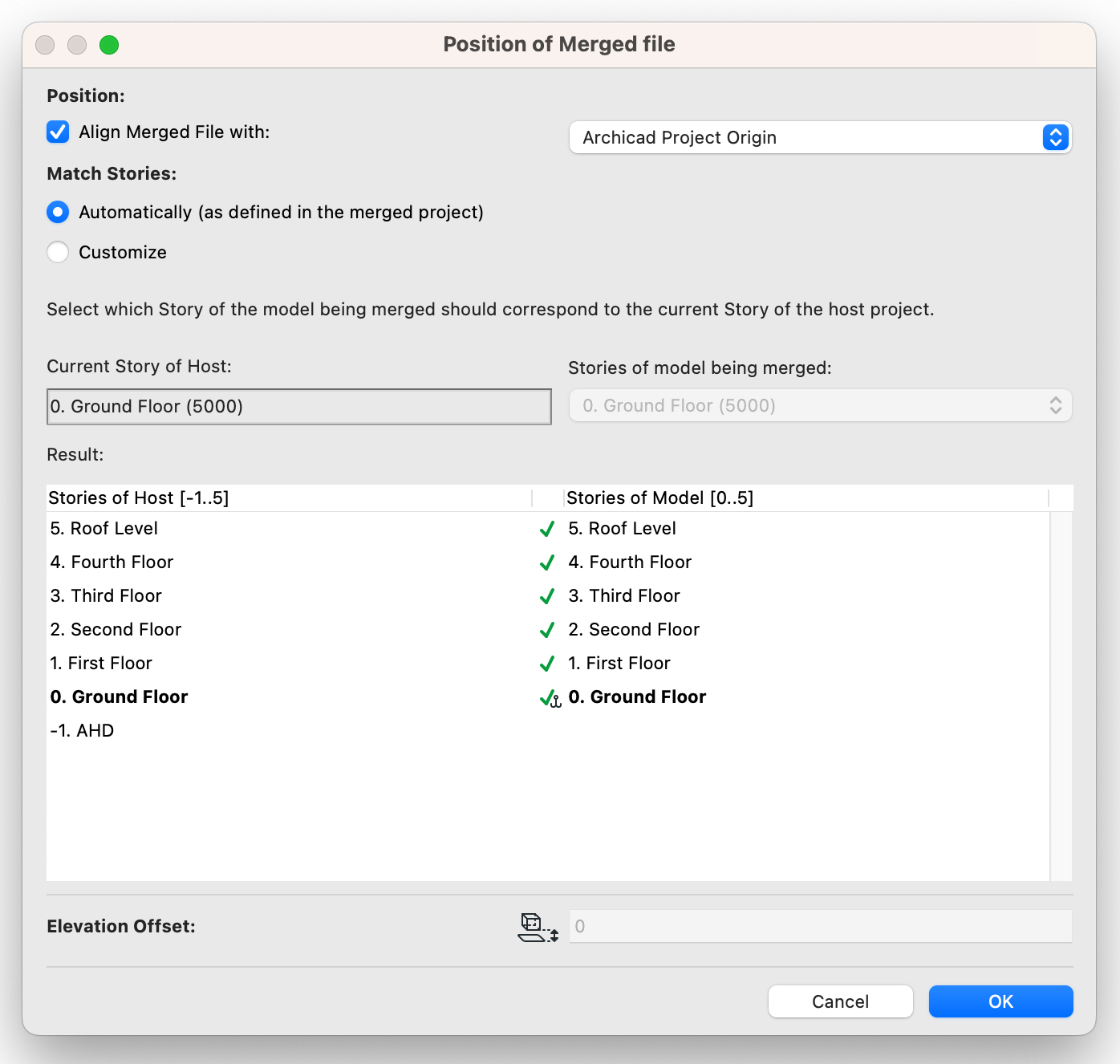
  6. Position IFC file.
    • Position: Align Merged File with ArchiCAD Survey Point.
    • Match Stories: Review resulting stories and ensure level match between IFC and host file. It is best to set the stories to match ‘Automatically’
    • Enabling the ‘Customize’ setting allow for the model to be offset by a number of stories. This is often useful for niche uses, however it will not take into consideration the different heights of the stories and other factors. It is best to have the storey levels match exactly between all programs. 
  7. Check Position of IFC Model.


Revit to ArchiCAD IFC Setup

Project Model Position 

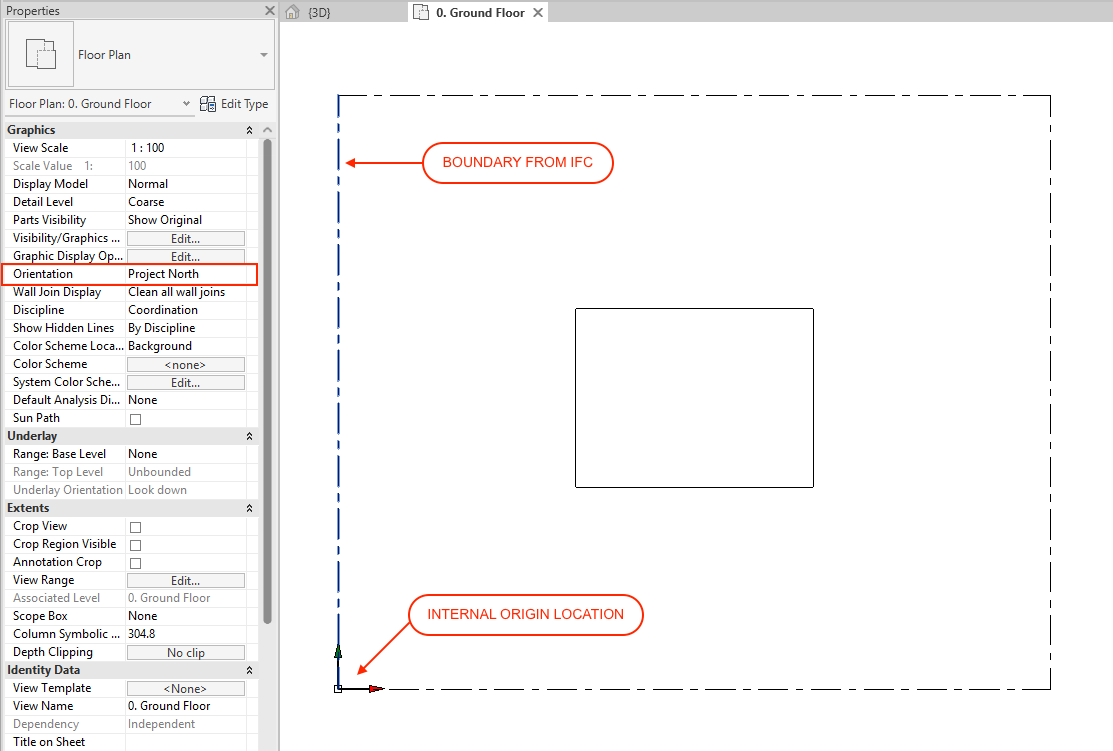
  • The “Internal Origin” should be used as the base of coordination
  • Set floor plan orientation view to “Project North”
  • The project is to be oriented so that the building’s major structures/grids align with the screen’s orthogonal axis.
  • Set project North
    • This is done via Manage > Position > Rotate True North. (You will need to set the model orientation to ‘True North’ temporarily.)
    • The north orientation is to be set according to the survey factoring in the rotation from the above step.
Storey Level Coordination

  • Each storey and its associated name and elevation are to be consistent with ArchiCAD.
  • The project lead should circulate a table of the project’s storey levels to be coordinated across all parties.
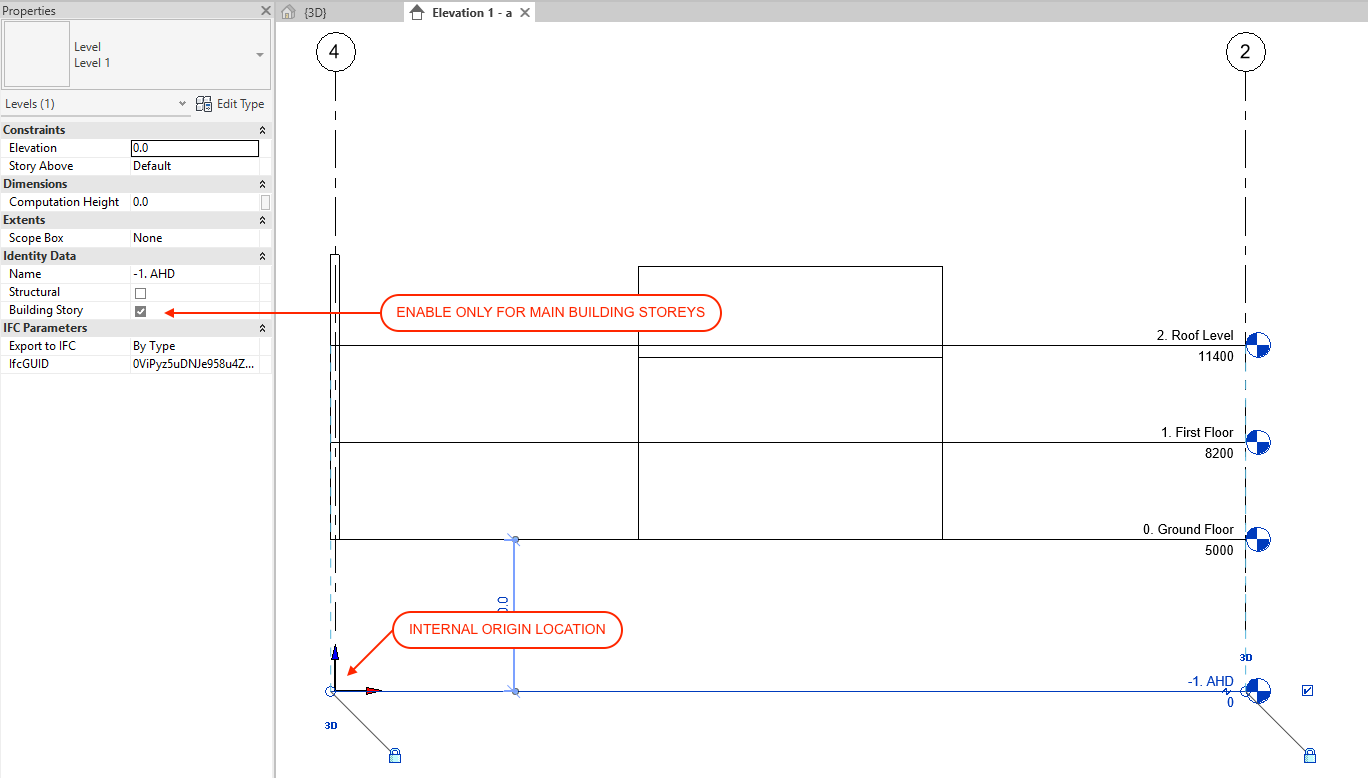
  • Only major stories from the circulated table should be included as building stories.
    • Any additional reference levels (facade datum lines, ceiling, sill levels etc) are to be amended so that it is not treated as a building story in their ‘Identity Data’.
Coordinate with ArchiCAD

  • Revit’s Internal Origin point will be aligned against ArchiCAD’s Project Origin.
  • The origin should be positioned at a key point on the site (i.e at a boundary corner) as determined by the Project Lead/Architect.
  • Project Base Origin level will be set at AHD to match Internal Origin.
  • Project Base Origin/ can be moved around provided the elevation does not change from 0.

Revit IFC Export Workflow

  1. Prepare model for 3D IFC export. 
    • Ensure correct Visibility/Graphics Overrides for 3D View have correct settings. 
    • Open 3D view to verify. 
  2. Load Smart Revit to ArchiCAD IFC.json file.
    • This can be done via File > Export > IFC.
    • The translator will determine the model’s geometry, position and IFC properties/classifications.
    • A JSON file of the settings can be downloaded here.
    • A full breakdown of the settings can be viewed below.
NAME
SETTING
NOTES
General
IFC Version
IFC 2×3 Coordination View 2.0
IFC2x3 is an older IFC language. It offers greater compatibility with various CAD programs and versions over IFC4.
Exchange Requirement
Architectural Reference Exchange
Includes relevant host geometry.
Category Mapping
Default
This maps Revit Categories to universal IFC Classes. Generally, this does not need to be amended.
Phase to Export
Varies
Set according to the project phase.
Space Boundaries
None
N/A
Split Walls, Columns, Ducts by level
Off
This often creates mess in the IFC translation process. Best left unchecked.
File Header Information…
Default
N/A
Project Address…
Default
N/A
Additional Content
Linked Files
Do Not Export
Ensures linked references are not included in the export. Only host geometry.
Export only elements visible in view.
On
Ensures only elements visible in the Visibility/Graphic Overrides are included.
Export rooms, areas and spaces in 3D view.
Off
N/A
Export 2D Plan View Elements
Off
ArchiCAD generally does not register these correctly. Best toggled off.
Export Ceiling Grids
Off
N/A
Property Sets
Export Revit property sets
Off
Not needed for ArchiCAD. Turn on only if requested by other Revit/Autodesk users.
Export IFC common property sets
On
Ensures exported elements include key IFC properties.
Export base quantities
On
Ensures geometry-derived quantities (volume, area) survive import
Export material property sets
Off
N/A
Export schedules as property sets
Off
N/A
Export only schedules containing IFC, Pest or Common in the title
Off
N/A
Export user defined property sets
Off
N/A
Export parameter mapping table
Off
N/A
Level of Detail
Level of detail for some element geometry
Medium
Generally this should be set to medium unless exporting complex geometry where 3D fidelity is important. Setting this to low often causes issues with blocking fittings and curved objects.
Advanced
Export parts as building elements
Off
Generally not needed unless using ‘parts’ extensively.
Allow use of mixed “Solid Model” representation
On
Ensures cleaner, lighter IFCs
Use active view when creating geometry
Off
Causes unpredictable exports.
Use family and type name for reference
On
Generally does not affect ArchiCAD
Use 2D room boundaries for room volume
Off
N/A
Include IFCSite elevation in the site local placement origin
On
Highly critical for aligning model Z level position
Store the IFC GUID in an elements parameter after export
Off
Adds IFC GUIDs to Revit elements for round-tripping. Generally not needed unless models are being sent back and forth.
Export bounding box
Off
Used for GSA or clash detection. Not needed for ArchiCAD.
Keep Tessellated Geometry as Triangulation
Off
Only applicable for IFC4
Use Type name only for IFCType Name
On
Simplifies classification by removing family names.
Use visible Revit name as the IFCEntity name
On
Exports actual Revit Element name. Best toggled on for team coordination.
Always export faceted floors and roofs as a single IFC entity
On
Consolidates triangulated geometry. Greatly improved IFC File performance and prevented fragmented elements.
Set “Last Modified” user to the Author in Project Information
On
Generally does not affect ArchiCAD
Export bars in uniform rebar sets as separate IFC entities
Off
Generally does not affect ArchiCAD.
Geographic Reference
Project Site
Default site
N/A
Coordinate Base
Internal Origin
Crucial for aligning Internal Origin to ArchiCAD’s project origin.

Revit IFC Import Workflow

  1. Open Revit file / template. 
    • The file should be relatively empty as a large portion of the project’s basic information (e.g stories, levels, project orientation) will be generated by the linked IFC.
    • The above is key if you are coordinating for the first time.
  2. Import IFC Via Insert tab > Link Panel > Link IFC.
    • In the new window, navigate to the initial coordination IFC and select open.
    • Note – Revit versions 2025 and older will not have additional options to determine model positioning at import.
      In Revit 2026 or newer, there will be an additional dropdown menu. Ensure
      “IFC Origin to Internal Origin” is selected.
    • By default, Revit will align the IFC’s origin to Revit’s Internal Origin.
  3. Incorporate Model
    • Once the IFC is linked, Revit will have imported the relevant 3D geometry and levels.
    • Check that all relevant information is present. This should include grids, a 3D element, levels, and a north point.
    • These elements can then be ‘bound’ to the file to turn them into native Revit elements.

macinteract Pty. Ltd.    |    ABN 44 155 154 653    |    terms and legal.   |   © 2025